

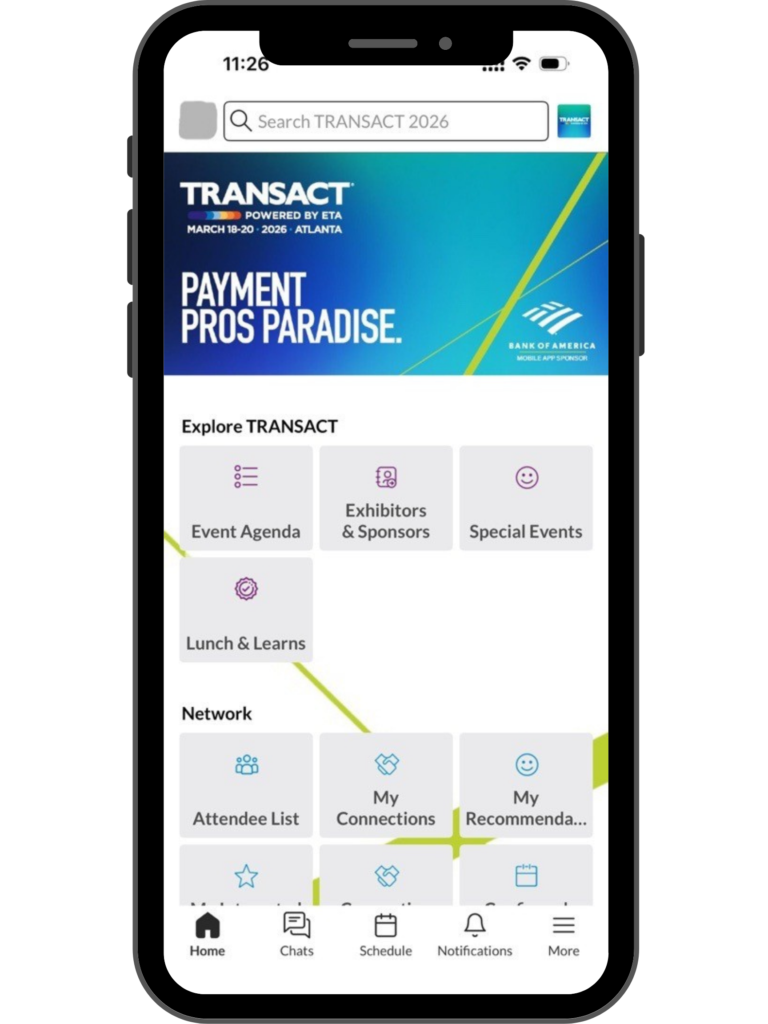
Navigate the show like a pro by downloading the official TRANSACT Mobile App.
You can download it here
First-time users should use their registered email and Registration ID (printed on your badge) as the password. Returning users can log in with their registered email and the password created during initial setup. If you've forgotten your password, click on "Email me a password reset link" to reset it.
For troubleshooting within the app, reach out to Mobile App Support via this form. Additionally, a Mobile App representative will be available on-site at TRANSACT for in-person support.
Regularly check for updates in your device's app store to ensure you have the most recent version of the TRANSACT mobile app, which includes the latest features and security enhancements.
To request a meeting, find a participant through search, browse lists, or check your recommendations. Tap their profile, then tap the calendar icon labeled "Request a Meeting." Select an available time and location that works for both of you, optionally add a message, and tap "Send Request." Your meeting will show as pending until accepted.
You can manage your availability in the app settings to block out times when you're unavailable for meetings.
Yes—multi-user (group) meeting requests can only be sent from the TRANSACT 2026 web/desktop platform.
*You can accept a multi-user meeting invitation from either web/desktop or the mobile app.
No. You don’t need to be connected to invite someone. Once a meeting request is accepted, a connection is created automatically
If you're unable to book meetings, check that you've set your availability, haven't reached your meeting limit, and don't have scheduling conflicts with the other participant. Also ensure the "Request Meeting" button appears on their profile and that meeting locations are available for your selected time slot.
Use the search bar at the top of the screen to find participants, companies, or products by typing names or keywords. You can also browse through the navigation menu by category, or explore personalized recommendations on your homepage. The platform supports multiple languages and provides results ranked by relevance.
Yes! You can message other attendees directly through the app to coordinate meetings and stay connected.
To chat with someone, you must first schedule a meeting with them or establish a mutual connection by both clicking "Connect" on each other's profiles. Once connected, find them in the "Chat" tab to start messaging. If your chat list is empty, tap "Start Networking" to discover and connect with recommended participants.
After the event, you can export all your meetings and connections directly from the mobile app or desktop version.
We use cookies to improve your experience on our site. By using our site, you consent to cookies.
Manage your cookie preferences below:
Essential cookies enable basic functions and are necessary for the proper function of the website.
You can find more information in our Privacy Policy and .